

Goals
Set objectives with key results, track progress through the season, and review how they turned out.
Each goal is one objective broken into key results — measurable outcomes with a start, current, and target value — so progress stays visible season-long, not just judged at the end.
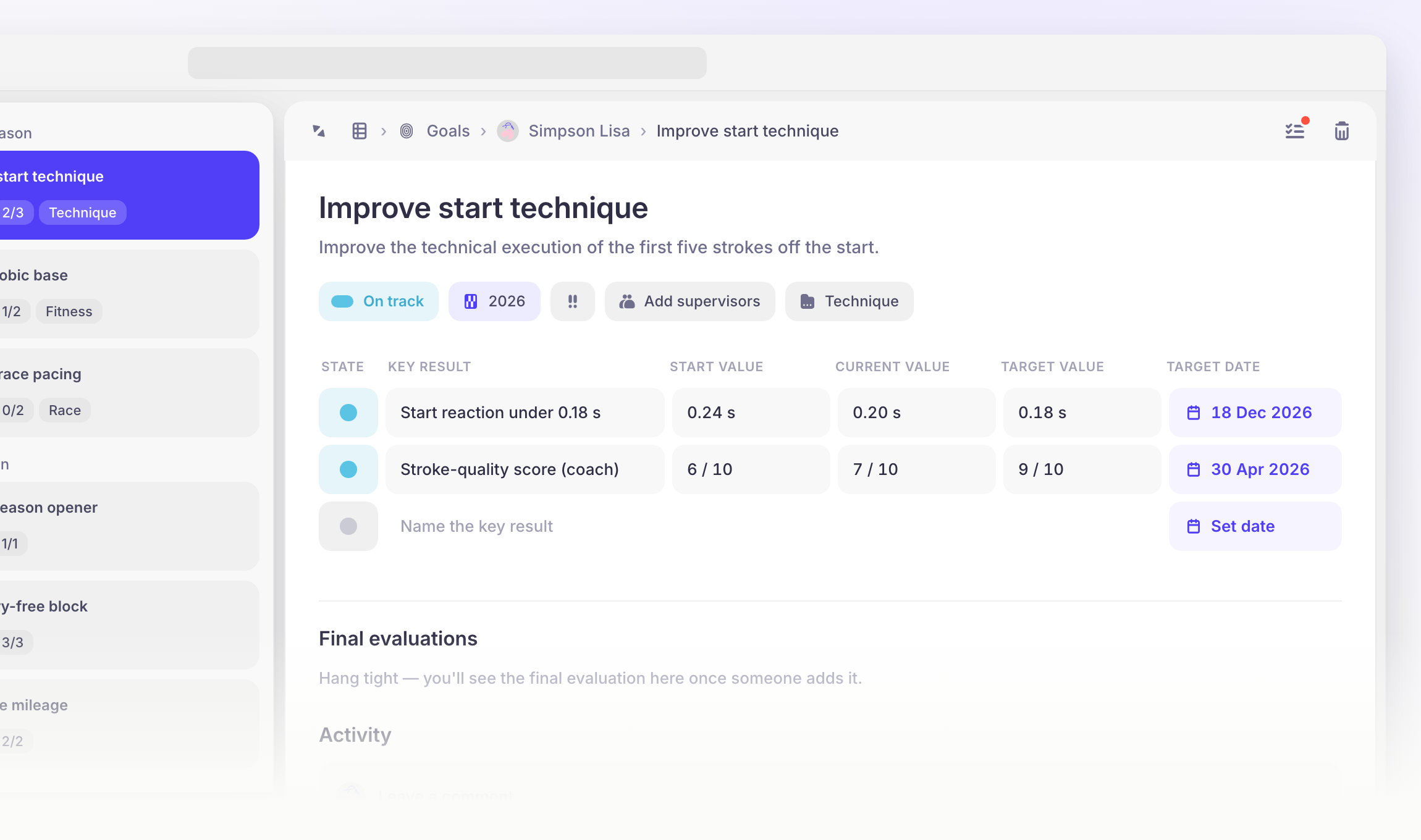
Where to find Goals
Open Goals from the main menu. As an athlete, you'll see your own goals straight away. As a coach, pick a group and then an athlete to work with their goals — or open your own Goals to set objectives for yourself.
Goals are grouped by season, each group with its own count: Current season, Past season, and Other — everything older than last season. Old objectives stay out of the way without being lost.
Create a goal
A goal is a single objective ("Lift 150 kg on bench press," "Reach the World Championship final"). Give it a name and some context, then break it into key results.
Select the athlete whose goal you're creating — or yourself, as a coach.
Select New goal in the tool bar at the bottom of the goal panel — or just press N. An empty goal appears, ready to edit.
Give it a title and description, then set its attributes (see below) and add key results. There's no Save button — changes apply immediately and are logged under Activity.
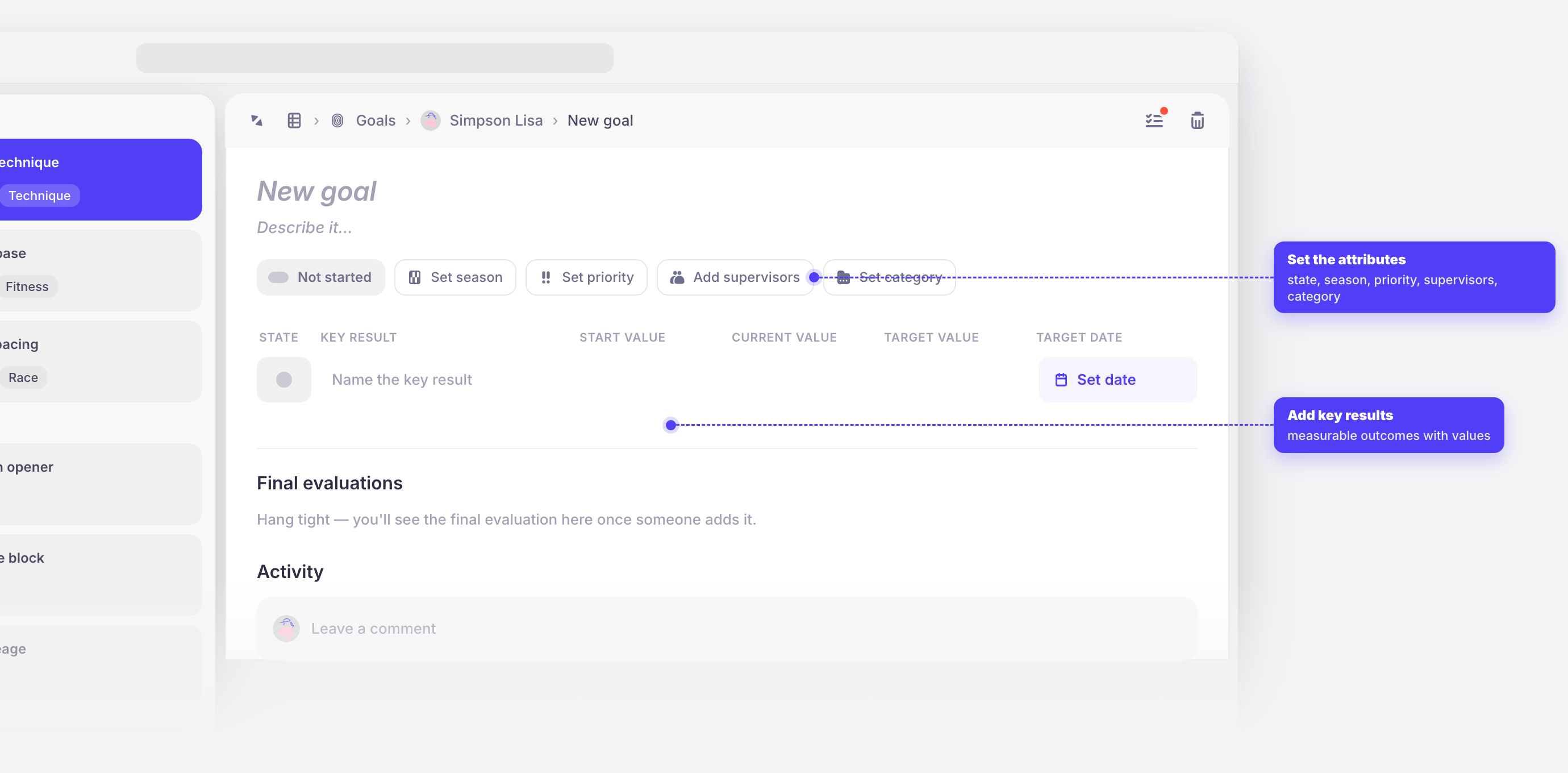
Goal fields
TitleThe objective, in a few words — for example, "Lift 150 kg on bench press."
DescriptionFree-text context: what success looks like and by when.
StateDefault: Not startedThe goal's status: Not started, On track, Off track, Completed, Canceled, or Failed.
SeasonDefault: Current seasonThe season the goal belongs to. Goals are grouped by season in the list.
PriorityDefault: LowLow, Medium, or High — set from the ! button. It shows as one to three exclamation marks, on the goal and in the list.
SupervisorsThe coaches who follow the goal. Use Add supervisors to pick them from a searchable list.
CategoryA two-level label — a category and its subcategory (for example, Fitness → Strength or Health → Recovery). Set it from Set category. The available categories are configured for your team.
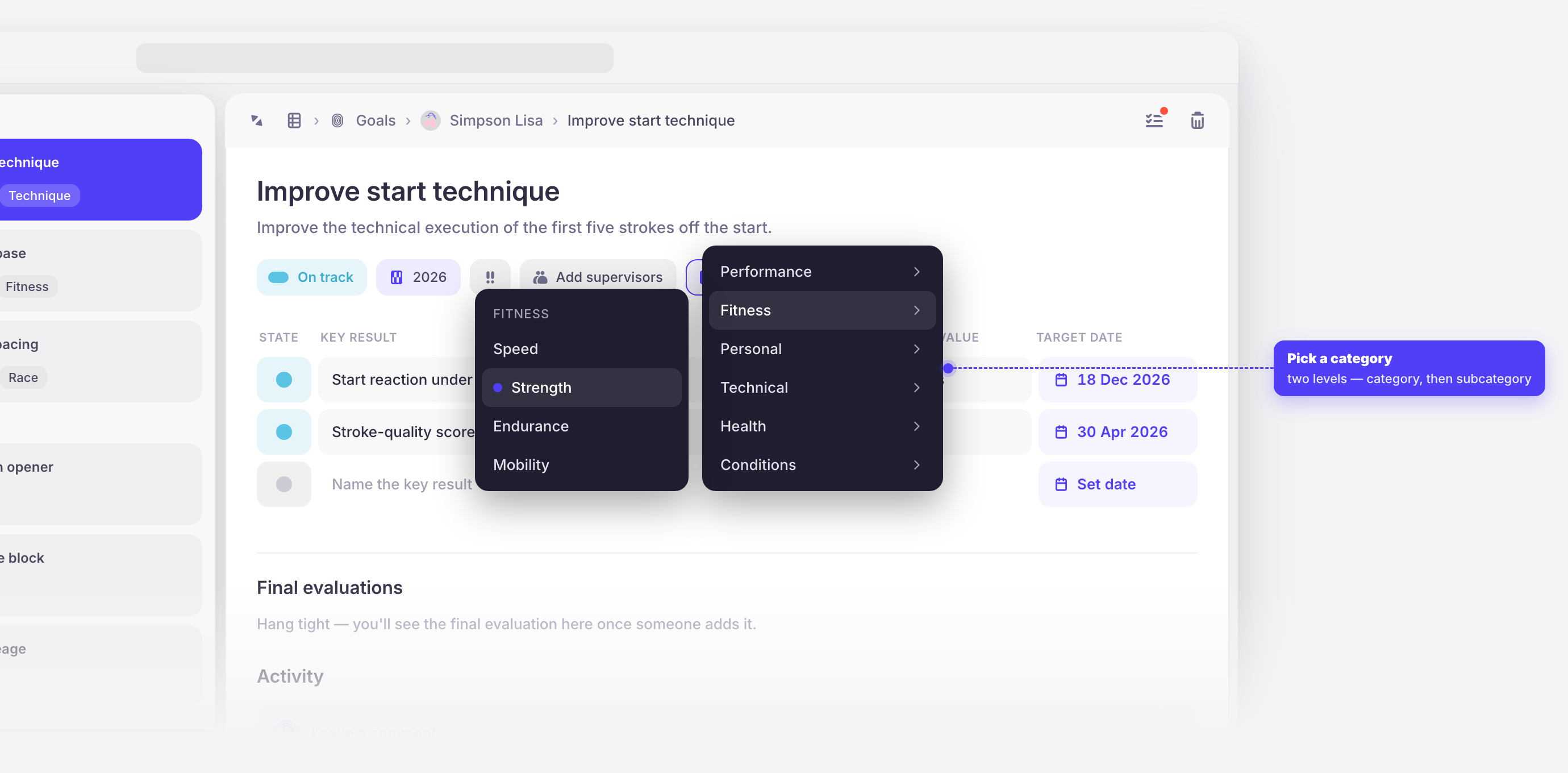
Add key results
A key result is a measurable outcome that tells you whether the goal is being met. Add as many as the goal needs — each row in the table is one outcome.
There are no sub-steps or milestones; key results are the only way to break a goal down.
Type into the inline Name the key result row at the bottom of the table to add a row.
Fill in Start value, Current value, and Target value.
Select Set date and choose when the key result should be reached.
Key result fields
StateThe key result's status — the same six states as the goal. It's the table's first column.
NameThe measurable outcome — for example, "Train at least 3× per week."
Start valueWhere the athlete began. Free text — a number (0) or a phrase (unknown).
Current valueWhere the athlete is now. Updated manually as progress is made.
Target valueThe value that counts as success — for example, 140kg or 3.
Target dateWhen the key result should be reached.
Check a goal is properly set up
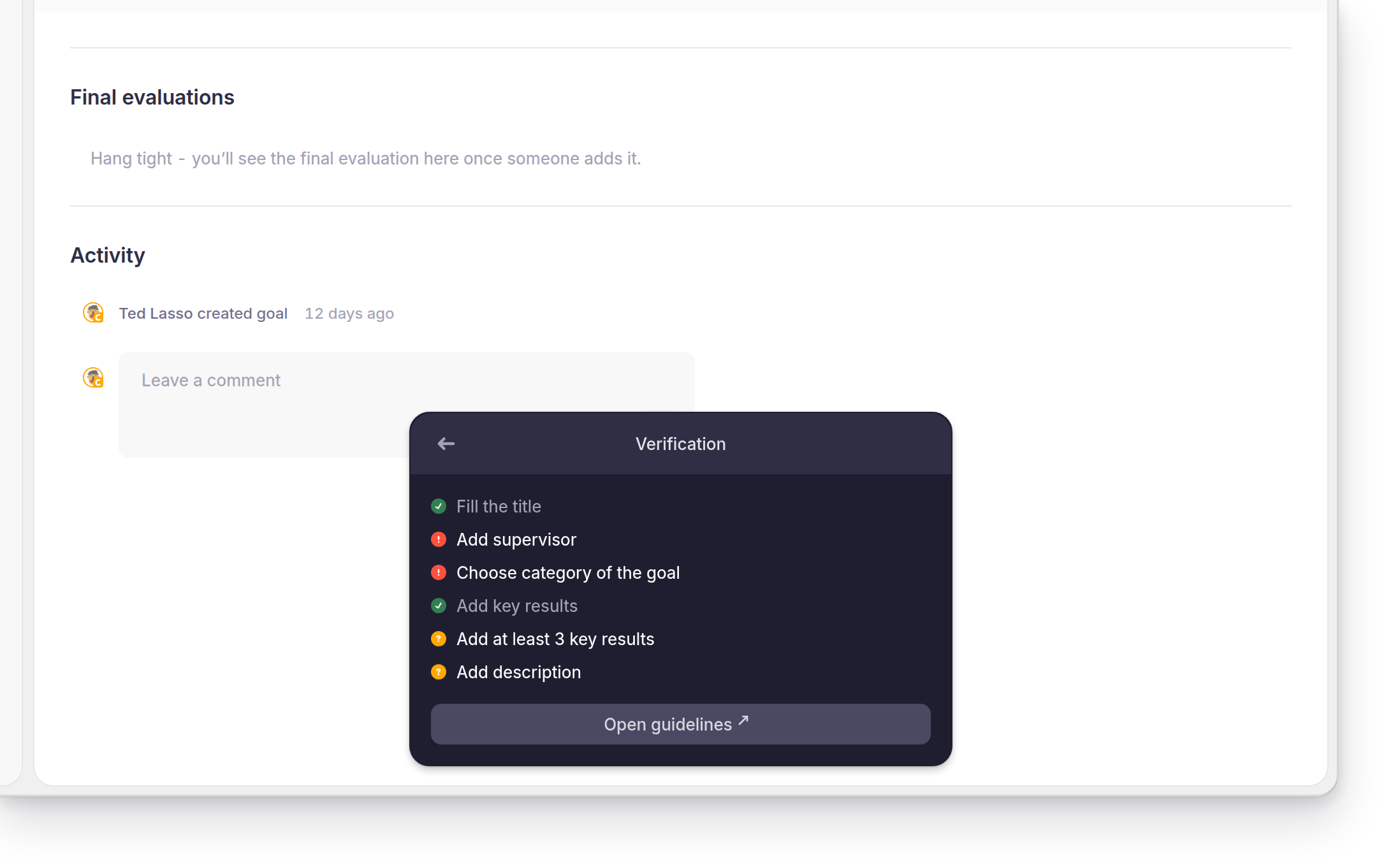
The checklist icon in the tool bar opens Verification — a check of the goal against your team's guidelines for writing one. Each item is marked:
- Red — required, and still missing.
- Amber — recommended, and still missing.
- Green — done.
The icon carries a dot badge while anything is outstanding, so you can see a goal needs attention without opening the panel. Open guidelines at the bottom links out to your team's own reference document.
Track progress
Values are updated manually, so keep them current as the athlete progresses — the conversations around a goal are only as good as its latest numbers. Update each key result's current value, and move the goal's state as the picture changes. The progress fraction counts achieved key results against the total.
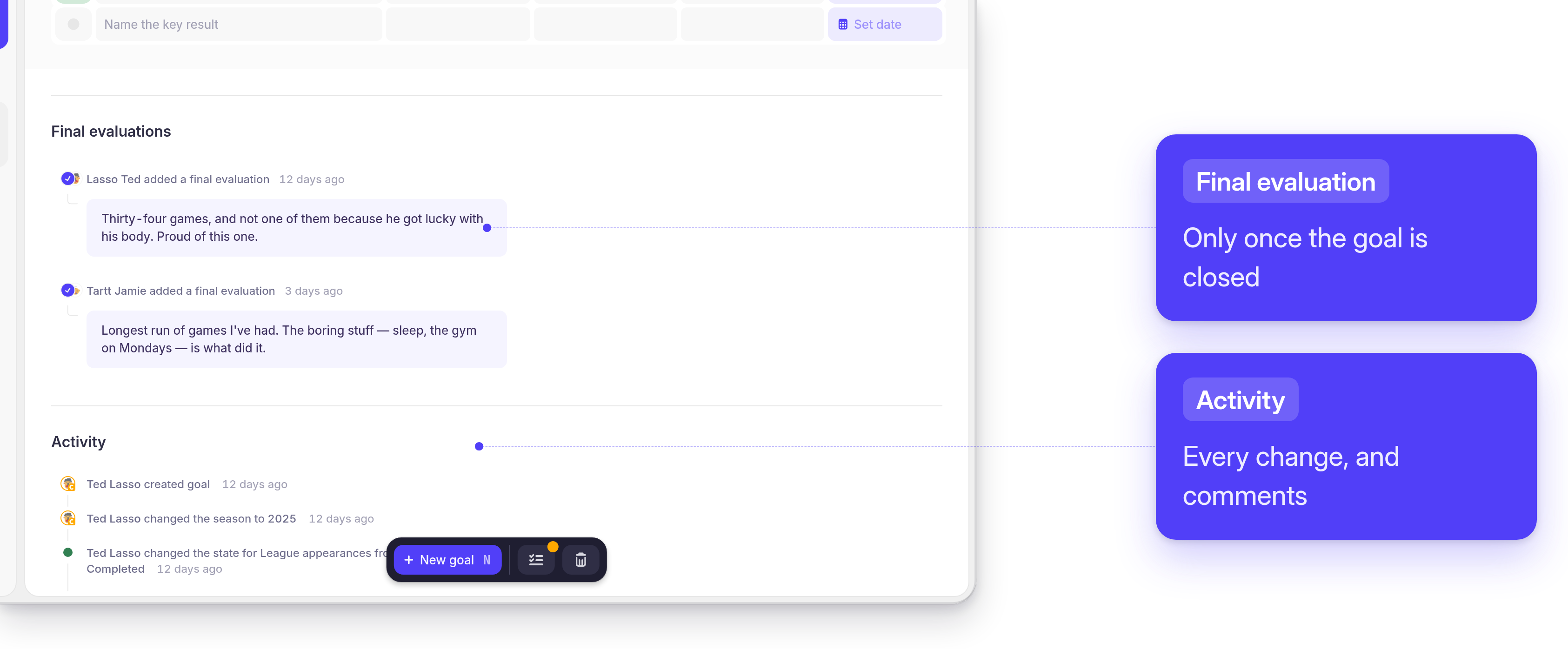
Every change is logged automatically — a new value, a state change, a moved target date, a rename — under Activity, with who made it and when.
Comments and final evaluations
Use Activity to leave a comment at any time. Comments are plain text, timestamped, and a good way for an athlete and coach to talk through progress in context.
When a goal wraps up, add a final evaluation — a short closing reflection on how it went. The athlete and each of the goal's supervisors can write their own, and only they see the box. It stays greyed out until the goal reaches a final state — Completed, Canceled, or Failed — so set the closing state first, then evaluate. Comments, by contrast, work at any point in the goal's life.
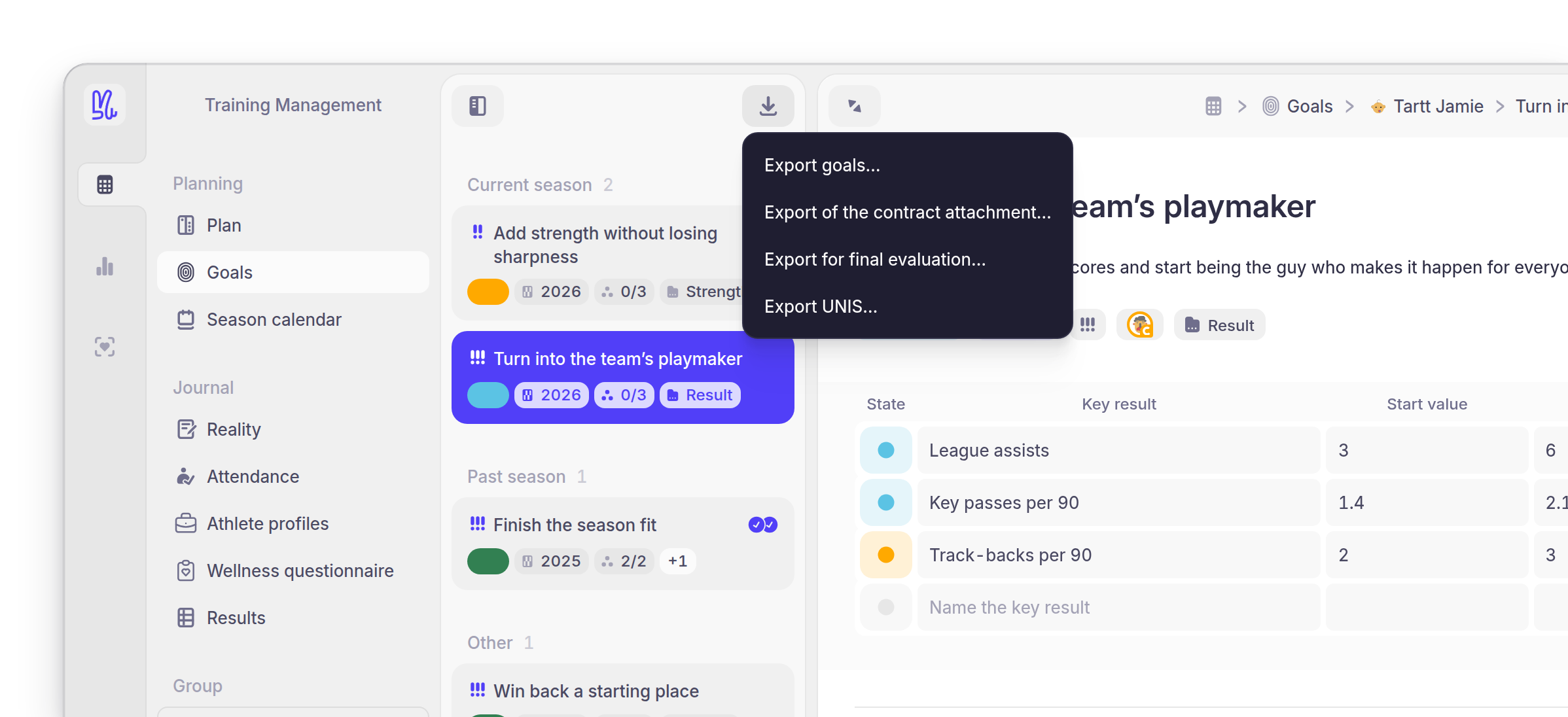
Export goals
The download icon at the top of the goals list opens Export options — a short menu of documents Yarmill can generate from the athlete's goals.
Export goals is the one every team has: choose the season and select Export. What comes out is the athlete's goals and key results for that season, in a form you can take into a meeting or attach to a review.
Delete a goal
Select the trash icon in the tool bar and confirm. Deleting is permanent — the goal and its key results go with it. To keep a goal that didn't work out, close it as Canceled or Failed instead, so it stays in the record for the season review.
See a whole group's goals
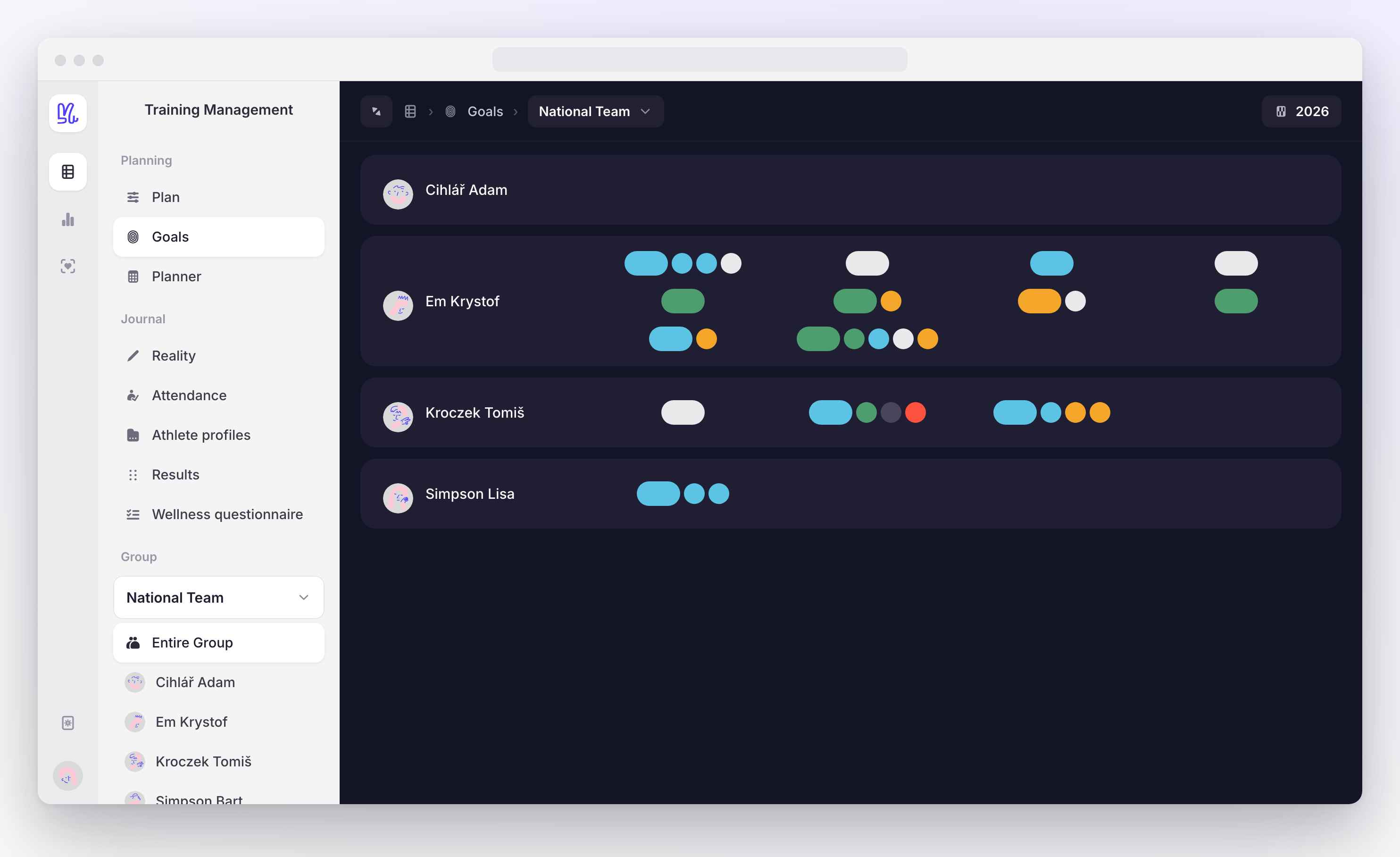
As a coach, select Entire Group to see the whole squad on one screen. Every athlete is a row — each goal a rounded pill colored by its state, followed by a small circle per key result, so a row reads as "how many goals, and how is each one going." Athletes with no goals still appear as a labeled row.
Hover a goal for a quick summary — its title, season, progress fraction, and category — or select it to open the full view. It's the fastest way to scan a squad before a planning meeting or review. The year selector sets which season the overview shows.
What athletes see
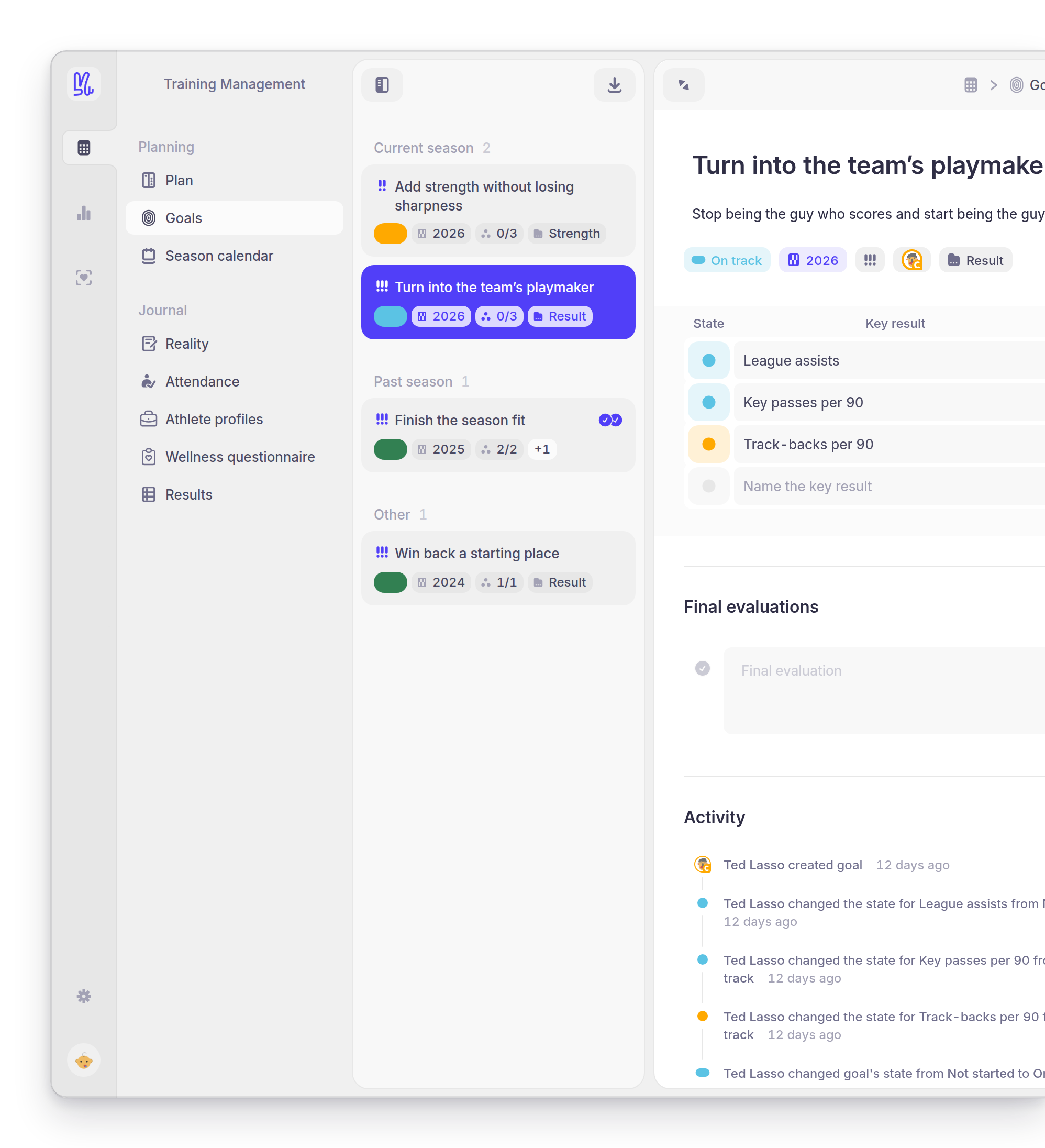
Athletes manage only their own goals. The sidebar has no group dropdown, no athlete list, and no Entire Group entry — just the modules and their own season buckets.
Everything else works the same. An athlete can create a goal, edit its title, description, attributes and key results, leave comments, run Verification, export, and delete — even on a goal a coach created for them. When such a goal reaches a final state, the athlete adds their own final evaluation alongside the coach's, so a closed goal can carry both.
How it connects
- See it in action: Set season goals with your athlete walks one goal from a blank row to a reviewed result.
- Goals and their final evaluations are the spine of pre- and post-season review conversations.
- A goal carries its own season — that's what buckets the list. It isn't tied to a Season Calendar event or a Plan week, so a goal can span whatever stretch of the season it needs to.
- Verification measures a goal against your team's guidelines document — a reference that lives outside Yarmill, behind Open guidelines.